How to Solve the Android Mobile Hanging Problem Using Code
Android smartphones are essential for communication, entertainment, online payments, and everyday tasks. However, many users experience problems such as screen freezing, slow performance, unresponsive applications, and unexpected restarts. These issues can occur because of insufficient storage, excessive background applications, outdated software, or system errors. Fortunately, you can try several troubleshooting methods, including Android dialer codes and built-in settings, to improve your phone’s performance.
1. Restart Your Android Mobile
The simplest way to fix a hanging problem is to restart your smartphone. Restarting clears temporary system issues and refreshes running processes. If your phone becomes completely unresponsive, press and hold the Power button. On some models, you may need to hold the Power and Volume Down buttons together for several seconds. The exact method depends on your device manufacturer.
2. Use Android Secret Codes Carefully
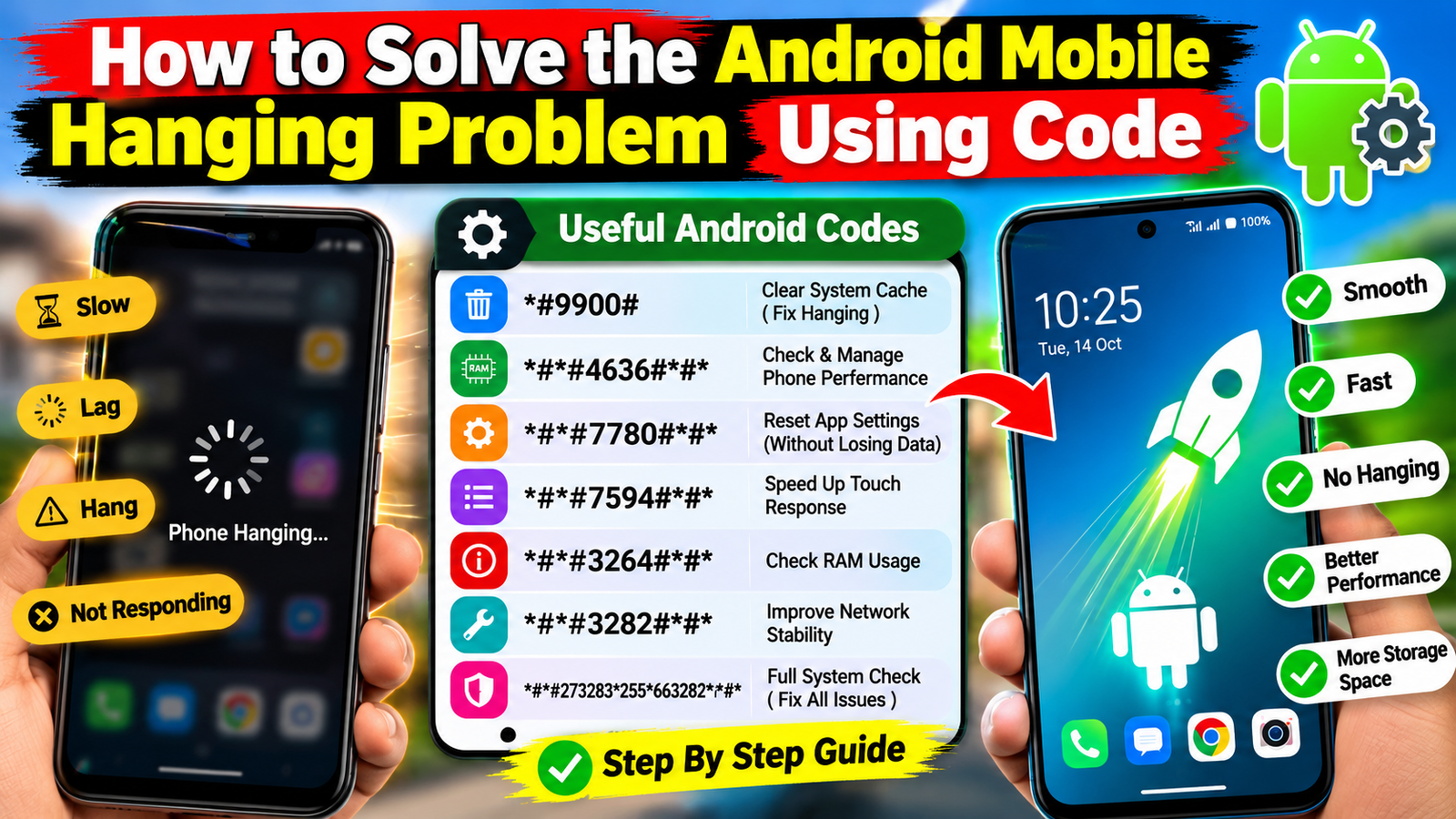
Some Android smartphones support special dialer codes that display device information or open diagnostic menus. Open the Phone app, enter the relevant code, and follow the instructions if your device supports it.
Here are some commonly known codes:
*#06#— Displays the device’s IMEI number. It does not fix hanging problems directly.*#*#4636#*#*— On some Android devices, opens a testing menu containing phone, network, and usage information.*#*#2664#*#*— May open a touchscreen test on certain devices, but support varies.
Important: These codes do not work on every Android phone. Availability depends on the manufacturer, model, Android version, and dialer application. Avoid entering unfamiliar service codes or changing hidden settings, as incorrect changes can cause additional problems.
3. Clear App Cache and Free Up Storage
Insufficient storage can make your Android phone slow or unresponsive. To improve performance, open Settings, select Apps, choose an application, and tap Storage or Storage & cache. Select Clear cache to remove temporary files.
You can also open Settings and navigate to Storage to identify unnecessary downloads, duplicate files, and large media files. Keep adequate free space available for system operations. Avoid selecting Clear storage unless you understand that it may delete the app’s local data or sign you out.
4. Update Android Software and Applications
Outdated software may contain bugs that affect performance. Open Settings, find System update or Software update, and install available updates. Then open the Google Play Store, select your profile, and check for app updates.
Updates can improve stability, fix software problems, and strengthen security. Connect to a reliable Wi-Fi network and back up important data before major updates.
5. Uninstall Problematic Applications
Some applications consume excessive memory or run unnecessary background processes. Uninstall apps that you no longer use, particularly recently installed apps that coincide with the hanging problem.
You can also test your phone in Safe Mode, which temporarily disables most downloaded applications. The method varies by manufacturer. If the phone works normally in Safe Mode, a downloaded app may be responsible.
6. Reset Your Phone Only as a Last Resort
If the problem continues, back up your photos, contacts, documents, and other important information. Then open Settings and search for Factory reset or Erase all data. A factory reset removes personal data and installed applications, so use it only after trying simpler solutions.
Conclusion
Android mobile hanging problems can often be reduced by restarting the device, clearing app caches, freeing storage, updating software, and removing problematic applications. Secret dialer codes provide limited diagnostic information and are not universal repair tools. Always use trusted troubleshooting methods and protect your personal data. If your smartphone continues to freeze, overheats, or restarts repeatedly, contact an authorized service center for professional diagnosis.