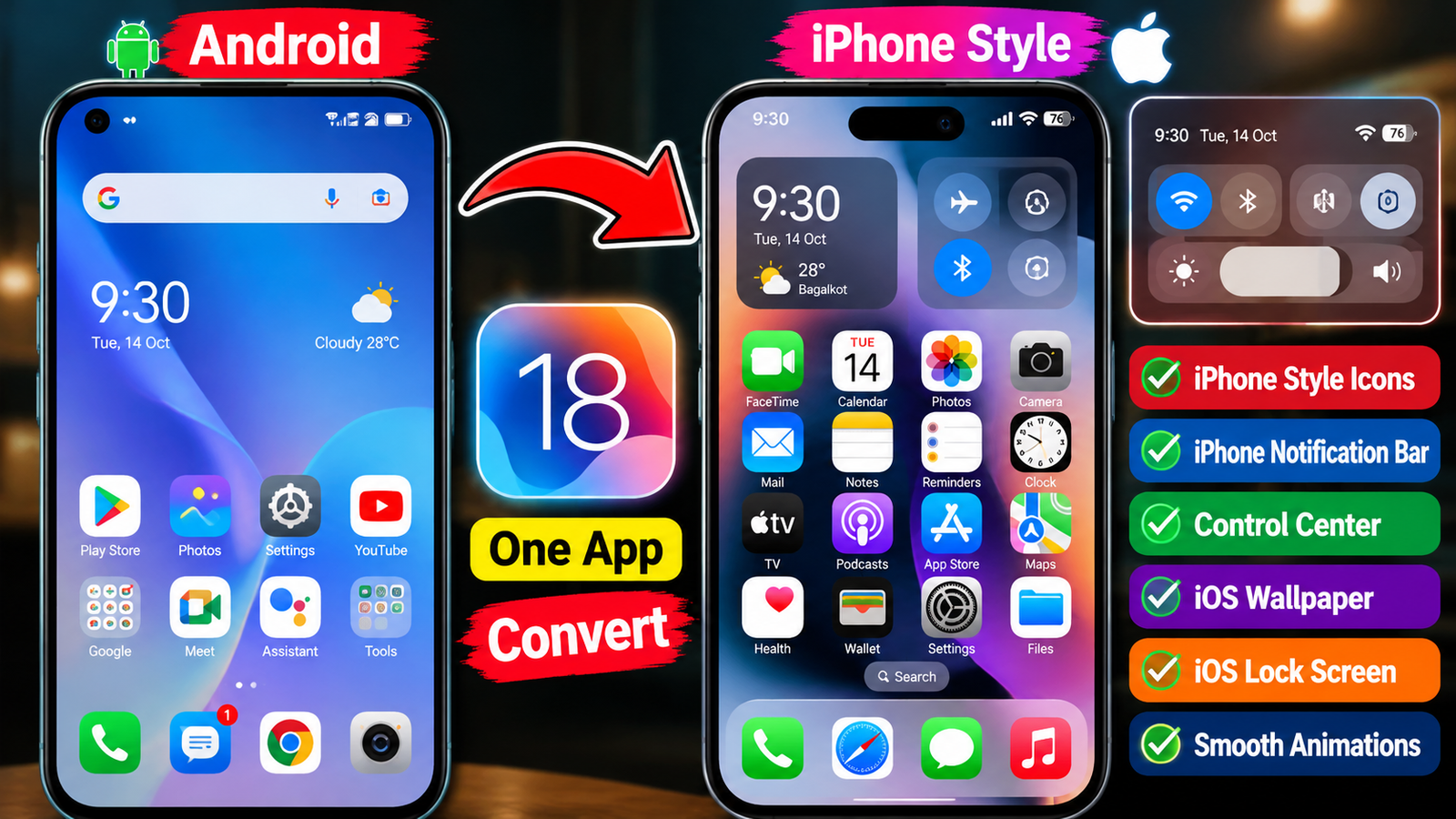
How to Convert Android to iPhone Icons and Notification Bar Using One App for Free
Do you want to make your Android phone look like an iPhone without buying an expensive Apple device? You can customize your Android home screen with iPhone-style icons, wallpapers, and an iOS-inspired notification panel using customization apps. With the right setup, you can give your Android device a fresh, modern appearance while keeping its original Android system.
In this guide, you will learn how to customize your Android phone to look like an iPhone using free apps.
1. Download an iPhone Launcher App
The first step is to install an iOS-style launcher. A launcher changes the appearance of your home screen, app icons, folders, and navigation layout.
Steps to follow:
- Open the Google Play Store on your Android phone.
- Search for an iOS launcher, such as Launcher iOS 18 or another recently updated iPhone-style launcher.
- Check its ratings, reviews, permissions, and available features before installing it.
- Install the app and open it.
- Follow the setup instructions and set it as your default home app if prompted.
After completing the setup, your home screen can display iPhone-style icons, app layouts, and folders. The exact features depend on the launcher you choose.
2. Change Android Icons to iPhone Icons
App icons play an important role in creating an iPhone-like experience. Many iOS-style launchers automatically apply similar icons to common apps.
To customize your icons:
- Open your installed launcher.
- Find the icon customization or theme settings.
- Choose an iOS-style icon pack if one is available.
- Apply the icon pack and arrange your apps.
- Add frequently used applications to the dock at the bottom of the screen.
You can also select an iPhone-inspired wallpaper to make the overall design more realistic.
3. Change the Notification Bar to an iPhone Style
The notification bar is slightly different from the home screen because Android controls many system-level features. Some customization apps can provide an iOS-inspired Control Center, quick settings panel, and notification interface.
Follow these steps:
- Open the Google Play Store.
- Search for an iOS-style Control Center app.
- Choose a reputable app with recent updates and clear privacy information.
- Install and open the app.
- Grant only the permissions necessary for its advertised features.
- Customize the layout, brightness slider, volume controls, and quick-access buttons.
Depending on your device and the app, you may be able to open the imitation Control Center with a swipe gesture.
Important: These apps generally imitate the iPhone interface rather than completely replacing Android’s original notification system. Some features may require additional permissions or may not work on every phone.
4. Can You Do Everything Using One App?
Some iOS-style launchers offer icons, wallpapers, and Control Center features together. However, many phones require a separate app for the notification panel. Before installing anything, check whether the launcher includes all the features you need.
5. Tips for the Best Results
- Download apps only from trusted sources, preferably Google Play.
- Avoid granting unnecessary accessibility or notification access.
- Choose lightweight apps to reduce battery consumption.
- Keep your original Android launcher available in case you want to switch back.
- Remember that customization apps cannot turn Android into actual iOS or provide every genuine iPhone feature.
Conclusion
Converting your Android phone into an iPhone-style device is possible with free customization apps. Start with an iOS launcher to change your home screen and icons, then use a compatible Control Center app to imitate the iPhone notification and quick-settings experience. With a matching wallpaper and carefully arranged icons, you can create an attractive iPhone-inspired interface without changing your phone’s operating system or spending money on a new device