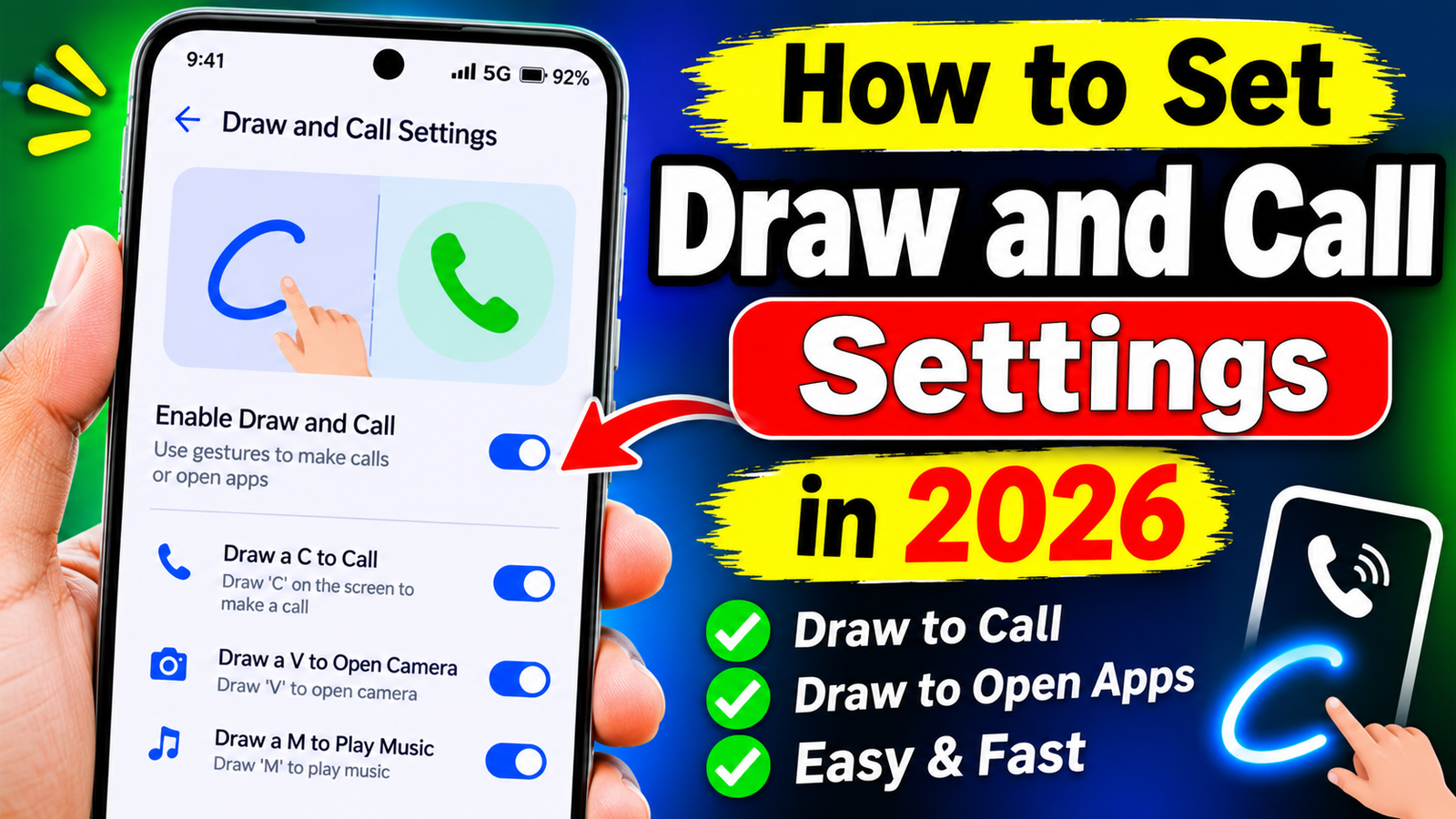
How to Set Draw and Call Settings in 2026
Draw and call settings are useful mobile features that help users manage incoming calls, answer calls conveniently, and customize how their smartphones respond to different calling situations. Depending on your mobile brand and Android version, these settings may include automatic call answering, call forwarding, call waiting, caller ID, and other call-related options.
In 2026, most Android smartphones provide these settings through the Phone application or the device’s Settings menu. You can customize them without installing additional applications.
1. How to Open Call Settings
Follow these steps to access call settings on your Android smartphone:
- Open the Phone or Dialer application.
- Tap the three-dot menu in the top-right corner.
- Select Settings.
- Find the Calling Accounts, SIM Card Settings, or Call Settings option.
- Select your SIM card if you are using a dual-SIM smartphone.
- Customize the available calling options according to your requirements.
The menu names may differ depending on your smartphone manufacturer, including Samsung, Redmi, Vivo, Oppo, Realme, Motorola, and other Android devices.
2. How to Set Call Forwarding
Call forwarding allows you to redirect incoming calls to another mobile number when your phone is busy, switched off, unreachable, or unanswered.
To activate it:
- Open the Phone application.
- Go to Call Settings.
- Select Call Forwarding.
- Choose the forwarding condition.
- Enter the mobile number where calls should be forwarded.
- Tap Enable or Activate.
Call forwarding availability depends on your telecom operator and SIM card.
3. How to Enable Call Waiting
Call waiting helps you receive notifications when another person calls while you are already speaking to someone.
- Open your Phone application.
- Navigate to Settings.
- Select Calling Accounts or SIM Settings.
- Choose your SIM card.
- Find Call Waiting.
- Enable the option.
Once activated, you can see incoming calls during an ongoing conversation and decide whether to answer or continue your existing call.
4. How to Set Draw Over Other Apps
The Draw Over Other Apps permission allows certain applications to display floating windows over other applications. For example, floating buttons, caller identification screens, screen tools, and some call-related applications may require this permission.
To enable it:
- Open your mobile Settings.
- Select Apps or Applications.
- Tap Special App Access.
- Select Display Over Other Apps or Draw Over Other Apps.
- Choose the application.
- Enable the permission if you trust that app.
Only grant this permission to trusted applications because it can allow an app to display content over your screen.
5. Benefits of Call Settings
Customizing call settings can improve your calling experience, help you manage missed calls, redirect calls when unavailable, and make incoming calls easier to handle. These options are especially useful for people who use two SIM cards or receive frequent business calls.
Conclusion
In 2026, you can easily customize call settings and draw-over-other-app permissions using your smartphone’s built-in settings. Always check the available options on your device and avoid giving unnecessary permissions to unknown applications. These simple adjustments can help you manage your calls more efficiently and improve your mobile experience.