How To Use CapCut Pro on Your Mobile In 2026
Introduction to CapCut
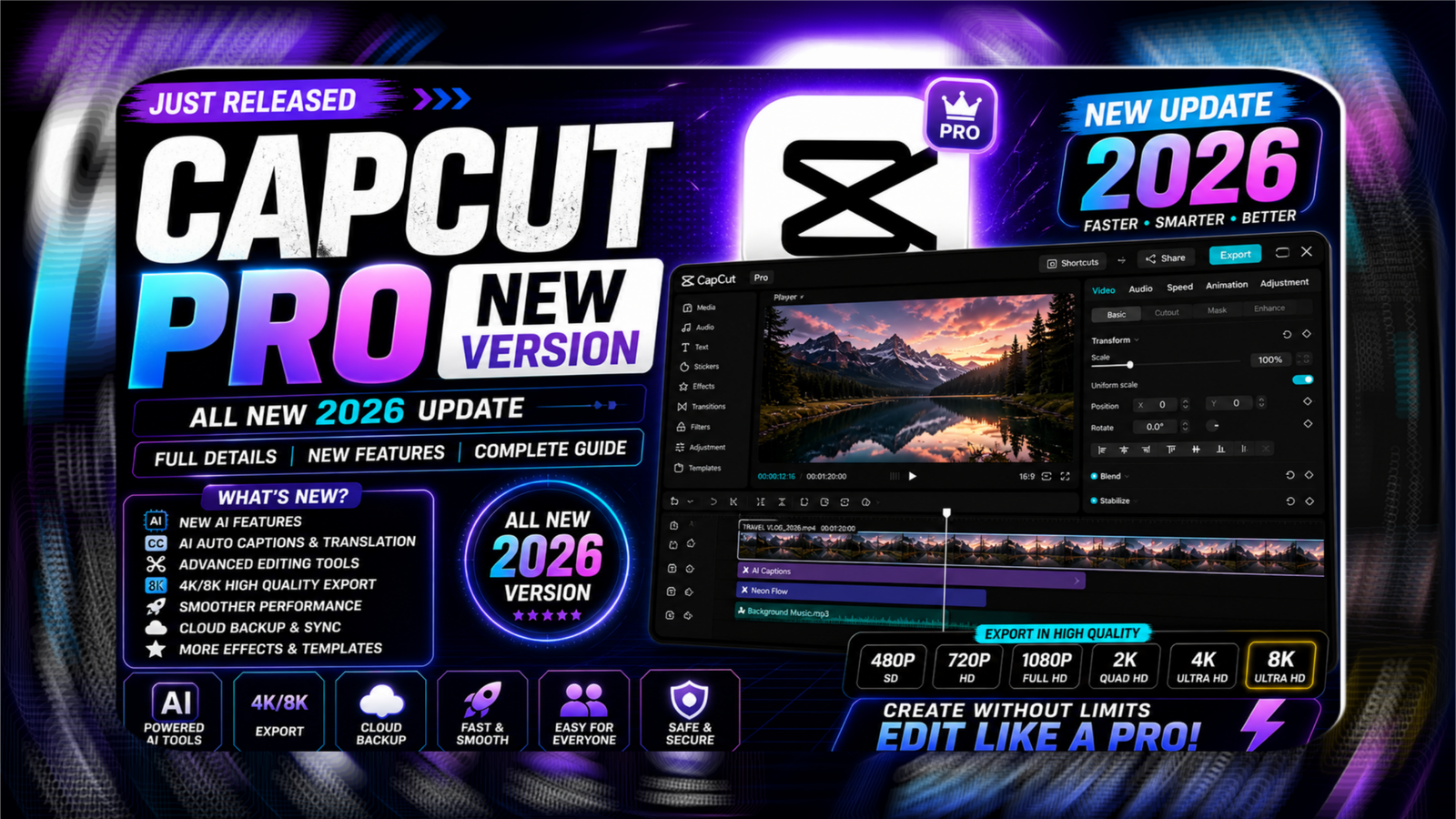
CapCut Pro is a powerful mobile video editing application designed for beginners and professionals. It offers advanced editing tools, premium effects, and high-quality export options. With this app, you can easily create YouTube videos, Instagram reels, and short-form content directly from your smartphone.
Step 1: Download and Install the App
To get started, open the Google Play Store or Apple App Store on your device. Search for CapCut and install it. After installation, log in using your account to unlock Pro features.
Step 2: Create a New Project
Open the app and tap on “New Project.” Select videos or images from your gallery and tap “Add.” Your selected clips will appear on the timeline, where you can begin editing.
Step 3: Basic Editing Tools
CapCut provides simple tools for editing:
- Trim: Cut unwanted parts of your video
- Split: Divide clips into sections
- Speed: Adjust slow motion or fast motion
- Adjust: Control brightness, contrast, and colors
These tools help you create clean and professional videos easily.
Step 4: Add Transitions and Effects
Tap between clips to add transitions like fade, zoom, and slide. In the Effects section, you can apply filters, cinematic looks, and trending visual effects available in Pro version.
Step 5: Add Text, Titles, and Stickers
Use the Text option to add titles or captions. Customize fonts, colors, and animations. You can also add stickers and emojis to make your content more attractive.
Step 6: Add Music and Audio
Go to the Audio section to add background music. Choose from CapCut’s library or upload your own sound. You can also record voiceovers directly and sync audio with your video.
Step 7: Use Advanced Pro Features
CapCut Pro includes advanced tools such as:
- Chroma Key: Remove and replace background
- Keyframe Animation: Create smooth movements
- Auto Captions: Generate subtitles automatically
- Background Remover: Remove background without green screen
These features help you create professional-level videos.
Step 8: Export and Share Your Video
Once editing is complete, tap on Export. Select video quality (up to 4K) and save it to your device. You can directly share your video on social media platforms.
Final Tips for Better Editing
- Use trending music and effects
- Keep videos short and engaging
- Maintain good lighting and audio quality
- Practice regularly to improve your skills
Conclusion
CapCut Pro is one of the best mobile video editing apps available today. With its easy interface and advanced features, anyone can create high-quality videos. By following the above steps, you can start editing like a professional and grow your online presence quickly.