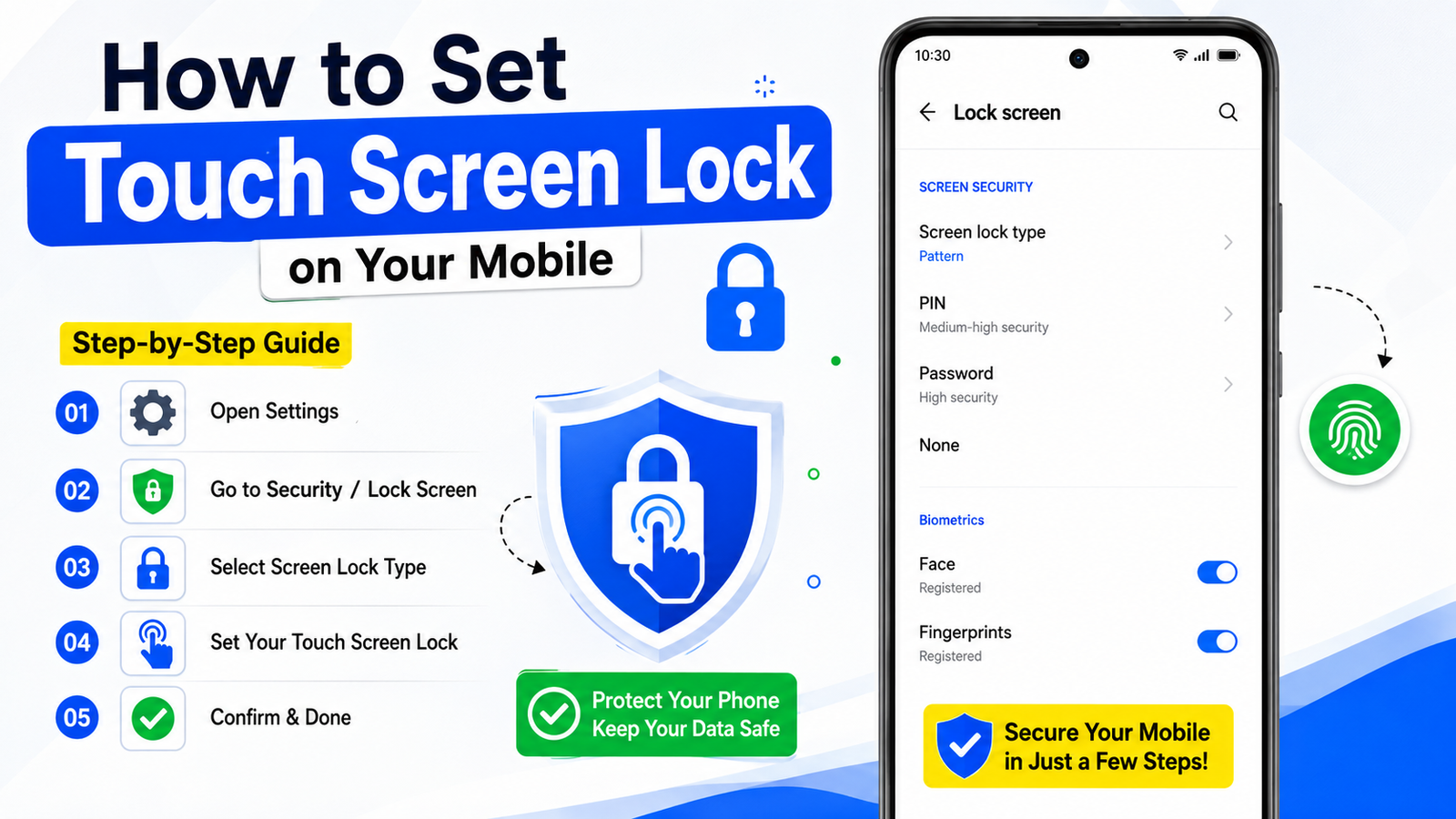
How to Set Touch Screen Lock on Your Mobile
Smartphones have become an essential part of our daily lives. We use them for communication, banking, social media, shopping, and storing personal information. Because of this, protecting your device from unauthorized access is very important. One of the easiest and most effective ways to secure your phone is by setting up a touch screen lock.
What Is a Touch Screen Lock?
A touch screen lock is a security feature that prevents other people from accessing your mobile phone without permission. Once enabled, the phone requires a PIN, password, pattern, fingerprint, or face recognition before it can be unlocked. This helps protect your personal data, photos, messages, and applications.
Benefits of Using a Touch Screen Lock
Setting a screen lock offers several advantages:
- Protects personal information from unauthorized users.
- Keeps banking and payment apps secure.
- Prevents accidental changes to phone settings.
- Safeguards photos, videos, and important documents.
- Reduces the risk of data theft if the phone is lost or stolen.
How to Set a Touch Screen Lock on Android
Follow these simple steps to enable a screen lock on most Android devices:
Step 1: Open Settings
Unlock your phone and open the Settings application from the home screen or app drawer.
Step 2: Go to Security Settings
Scroll down and tap Security, Security & Privacy, or Lock Screen, depending on your device model.
Step 3: Select Screen Lock
Tap Screen Lock or Lock Screen Password.
Step 4: Choose a Lock Type
You will see different lock options, including:
| Lock Type | Security Level |
|---|---|
| Swipe | Very Low |
| Pattern | Medium |
| PIN | High |
| Password | Very High |
| Fingerprint | High |
| Face Unlock | High |
Step 5: Create Your Lock
Choose your preferred option and follow the on-screen instructions. For example, if you select a PIN, enter a 4-digit or 6-digit number and confirm it.
Step 6: Save Settings
After confirmation, the touch screen lock will be activated automatically.
How to Set a Touch Screen Lock on iPhone
- Open Settings.
- Tap Face ID & Passcode or Touch ID & Passcode.
- Select Turn Passcode On.
- Enter a six-digit passcode.
- Confirm the passcode.
- Set up Face ID or Touch ID if supported by your device.
Your iPhone will now be protected with a secure screen lock.
Tips for Better Mobile Security
- Use a strong PIN or password instead of a simple pattern.
- Avoid using easily guessed numbers such as birthdays.
- Enable fingerprint or face unlock for added convenience.
- Change your password regularly.
- Keep your phone’s software updated.
- Enable the “Find My Device” feature for extra protection.
Conclusion
Setting up a touch screen lock is one of the most important steps for protecting your smartphone and personal information. Whether you use an Android device or an iPhone, the process is simple and takes only a few minutes. By using a secure PIN, password, fingerprint, or face recognition, you can keep your data safe and prevent unauthorized access to your mobile device. Regularly updating your security settings will help ensure your phone remains protected at all times.