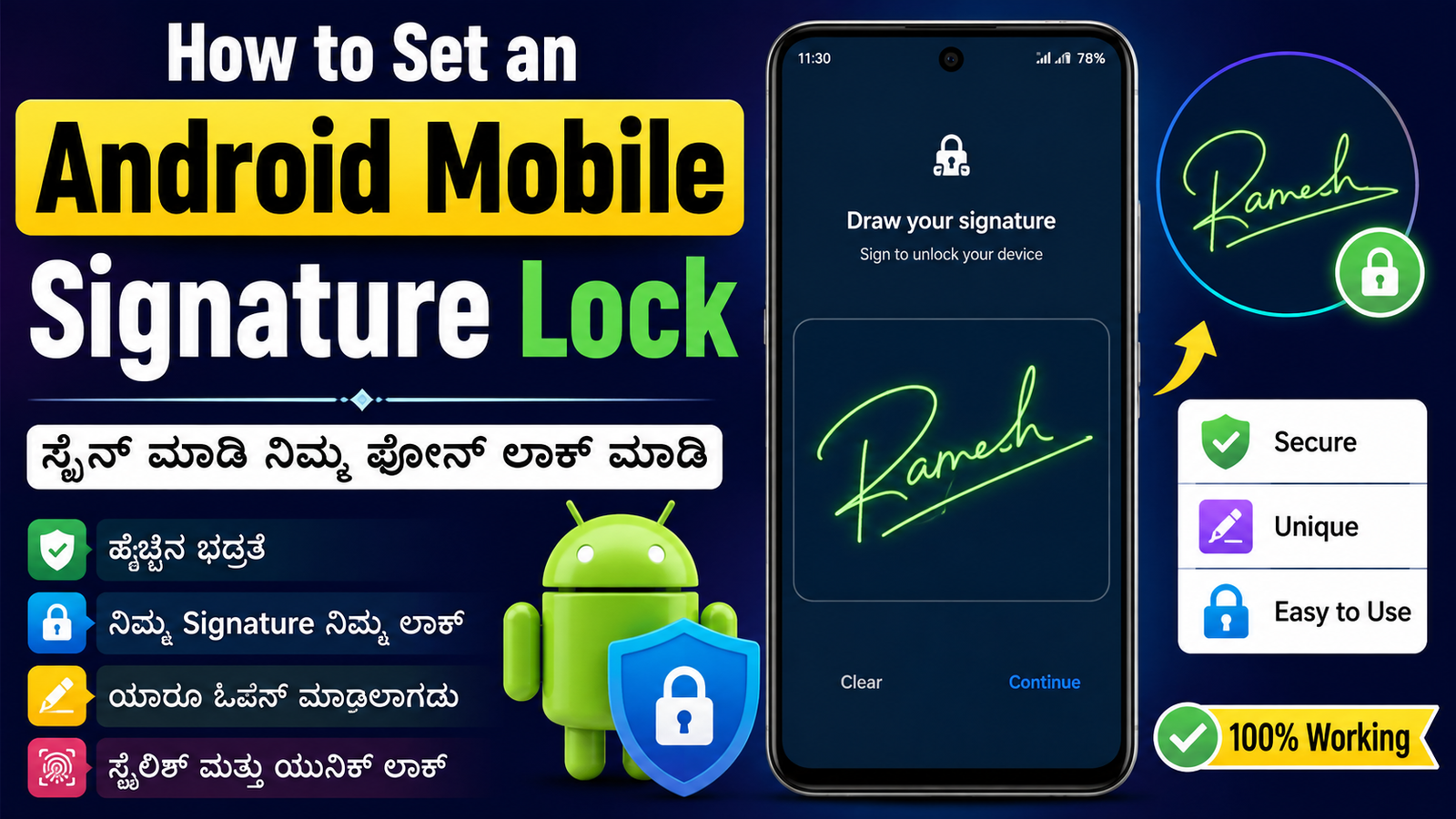
How to Set an Android Mobile Signature Lock
Introduction
A signature lock is a unique way to protect your Android smartphone by using your handwritten signature instead of a traditional PIN or pattern. Although modern Android devices mainly offer PIN, pattern, fingerprint, and face recognition, some third-party apps still allow users to create a signature-based lock screen. If you want a personalized lock method, a signature lock can be an interesting option.
What Is a Signature Lock?
A signature lock is a security feature that lets you unlock your smartphone by drawing a signature that only you know. Unlike a simple pattern, your signature can include curves, letters, and unique strokes, making it more personalized. However, its security depends on the app you choose and how complex your signature is.
Steps to Set a Signature Lock
Step 1: Open the Google Play Store
Unlock your Android phone and launch the Google Play Store.
Step 2: Search for a Signature Lock App
In the search bar, type “Signature Lock Screen” or “Signature Lock App.” Read the ratings, reviews, and download count before selecting an app from a trusted developer.
Step 3: Install the App
Tap the Install button and wait for the app to download and install on your device.
Step 4: Grant Required Permissions
Open the app and allow the permissions it requests, such as displaying over other apps or accessibility access, if required for the lock screen to function correctly.
Step 5: Create Your Signature
Follow the on-screen instructions to draw your signature. Draw it carefully and confirm it by entering the same signature again.
Step 6: Set a Backup Unlock Method
Most signature lock apps let you create a backup PIN or password. This is useful if the app does not recognize your signature.
Step 7: Enable the Lock Screen
Turn on the signature lock feature in the app settings and lock your phone to test whether it works correctly.
Advantages of a Signature Lock
- Provides a personalized unlocking experience.
- Easy to remember if you use your own signature.
- Offers a different alternative to PIN or pattern locks.
- Many apps include themes and customization options.
Things to Keep in Mind
- Signature lock apps are generally less secure than Android’s built-in PIN, password, fingerprint, or face unlock.
- Always download apps from trusted developers with positive reviews.
- Set a backup PIN or password to avoid being locked out.
- Keep the app updated for better security and performance.
- If the app causes problems, disable it and switch back to Android’s built-in screen lock.
Conclusion
A signature lock can make your Android phone feel more personalized while adding an extra layer of security. Since most Android devices no longer offer this feature by default, you will need a reliable third-party app. For the best protection of personal and financial data, Android’s built-in security methods—such as a strong PIN, password, fingerprint, or face unlock—remain the most secure choices. If you still prefer a signature lock, choose a trusted app, create a unique signature, and always enable a backup unlock method.