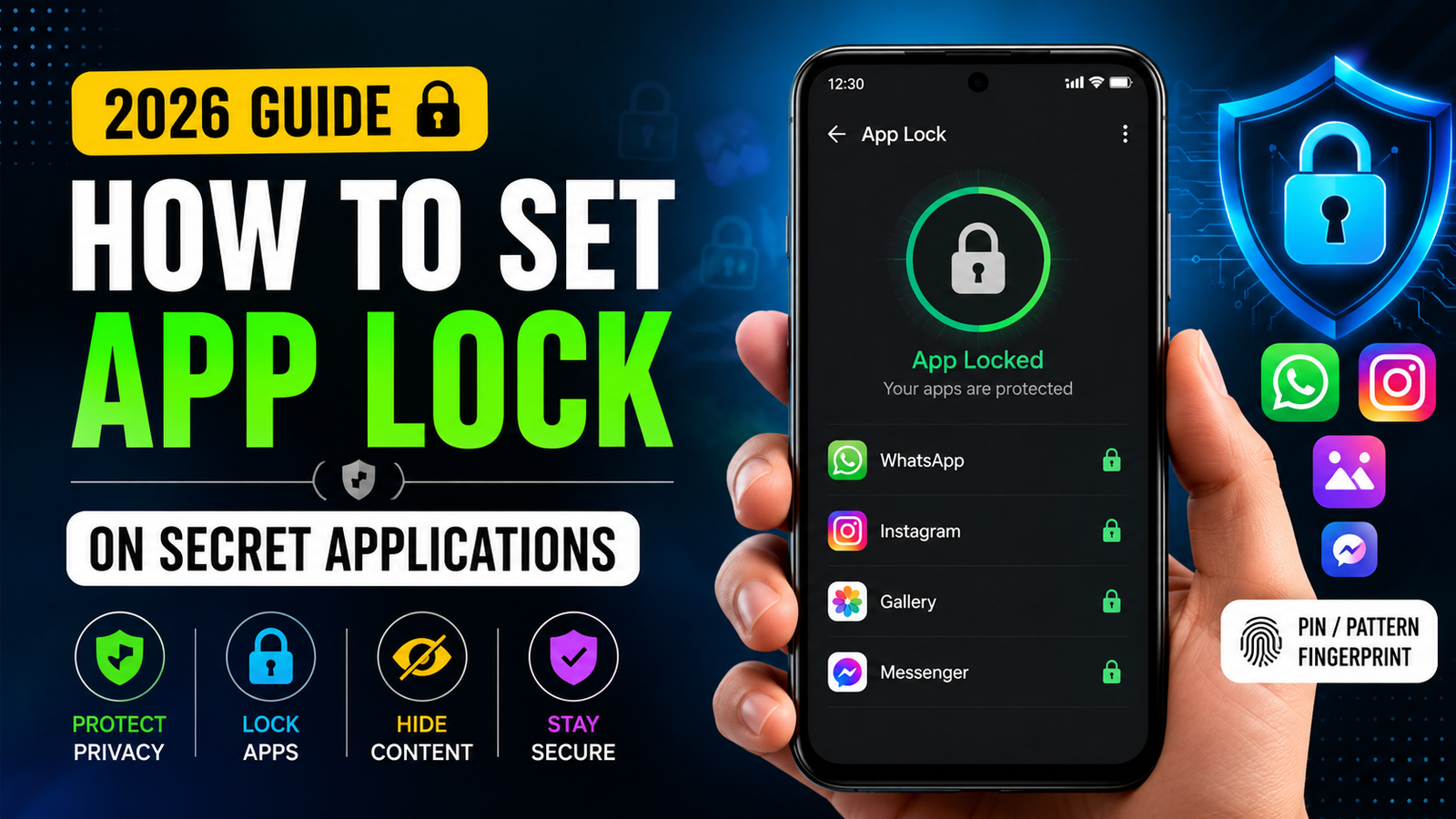
How to Set App Lock on Secret Applications in 2026
In 2026, protecting personal information on your smartphone has become more important than ever. Many people keep private photos, messages, banking applications, social media accounts and important documents on their phones. If you want to prevent others from opening selected applications, you can use an App Lock feature or your phone’s built-in privacy tools.
What Is App Lock?
App Lock is a security feature that requires a PIN, password, pattern or fingerprint before opening a protected application. Some Android phones provide App Lock directly in their settings, while other devices offer features such as Private Space or Secure Folder. Android’s Private Space, available on supported Android 15 and newer devices, can create a separate protected area for sensitive applications.
How to Set App Lock on Android
First, open the Settings application on your smartphone. Search for options such as App Lock, Privacy, Security, App Security or Private Space. The exact name and location can differ depending on your phone brand and software version.
If your phone supports Private Space, go to:
Settings → Security & privacy → Private space → Set up
Authenticate with your existing screen lock and create a separate PIN, password, pattern or fingerprint for Private Space. Google recommends using a separate lock when you want an additional layer of protection.
How to Add Secret Apps
After setting up Private Space, open the app drawer and access Private Space. Tap Install and install the application you want to keep private. The application installed inside Private Space works separately from the normal version, so you may need to sign in again.
You can use this method for applications containing sensitive information, provided the app and your device support the feature.
How to Hide the Private Space
For additional privacy, Android allows supported devices to hide Private Space when it is locked. Open Private Space, go to its settings and enable Hide private space when it’s locked. When locked, the private applications are hidden from several normal phone locations.
Samsung Users
Samsung Galaxy users can also use Secure Folder on supported devices. Go to Settings → Biometrics and security → Secure Folder, sign in to your Samsung Account and choose a suitable lock type. You can then add applications and files to Secure Folder for additional protection.
Important Security Tips
Always create a strong PIN or password that other people cannot easily guess. Avoid using simple combinations such as 1234 or your birth year. Keep your Android software and applications updated, and download security applications only from trusted sources.
Remember that menu names and available features can vary by smartphone manufacturer and Android version. Android Private Space is officially supported on Android 15 and newer compatible devices.
Conclusion
Setting an App Lock or using a protected space is a simple way to improve smartphone privacy in 2026. Whether your phone provides App Lock, Android Private Space or Samsung Secure Folder, choose a strong lock method and protect applications containing your personal information