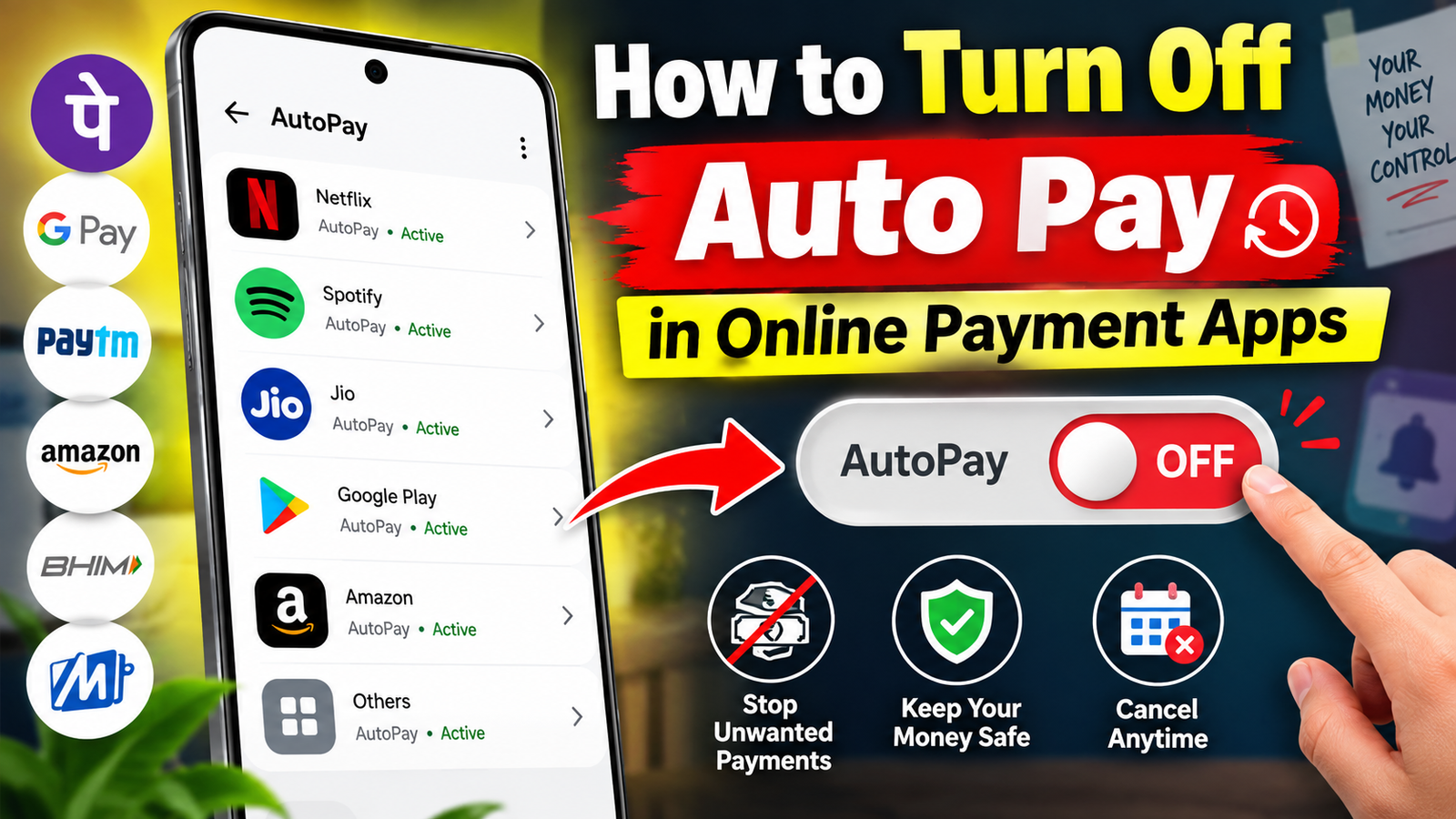
How to Turn Off Auto Pay in Online Payment Apps
Online payment applications have made it easy to pay electricity bills, mobile recharges, OTT subscriptions, insurance premiums, loan EMIs, and other recurring expenses. One useful feature offered by many payment apps is Auto Pay, which automatically deducts money from your linked bank account or payment method on a scheduled date. While this feature is convenient, you may sometimes want to stop automatic payments to avoid unwanted deductions.
Fortunately, turning off Auto Pay is usually simple. The exact steps can vary depending on the payment application and the type of recurring payment. Here is a general guide to disabling Auto Pay safely.
What Is Auto Pay?
Auto Pay is a recurring payment facility that allows an application or merchant to automatically collect money according to a previously approved mandate. Once enabled, payments can happen without requiring you to manually approve every transaction.
Before disabling it, check which subscriptions, bills, or services are connected to the mandate.
How to Turn Off Auto Pay
1. Open Your Payment App
First, open the online payment application you normally use, such as Google Pay, PhonePe, Paytm, or another supported payment service. Make sure you are using the official application and have installed the latest available update.
2. Open the Payments or Profile Section
Look for options such as Profile, Settings, Payments, Bills & Recharges, Subscriptions, or AutoPay. Different apps may use different names for this section.
3. Find the Active Auto Pay Mandate
Open the Auto Pay or recurring payments section. You should see active mandates or subscriptions linked to your account. Select the particular payment that you want to stop.
4. Select Cancel or Disable
Look for an option such as Cancel AutoPay, Disable, Remove Mandate, or Stop Automatic Payment. Follow the instructions shown on the screen.
Some payment apps may ask you to confirm the cancellation using your UPI PIN or another authentication method.
5. Confirm the Status
After completing the cancellation, return to the Auto Pay section and check the status. It should show that the mandate has been cancelled, disabled, or inactive.
Important Things to Remember
Turning off Auto Pay may stop future automatic deductions, but it does not necessarily cancel the underlying subscription or service. For example, if you disable Auto Pay for an OTT service, you may also need to cancel the subscription separately through that service.
Also, check your bank account or transaction history after cancellation. If an upcoming payment is already being processed, cancelling the mandate may not reverse that transaction.
Conclusion
Disabling Auto Pay is a useful way to maintain better control over recurring online payments. Regularly reviewing your active UPI mandates and subscriptions can help prevent unexpected deductions. Always verify that the correct mandate has been cancelled and keep a record of the confirmation. If you are unsure about a particular recurring payment, contact the payment app or service provider through its official support channel