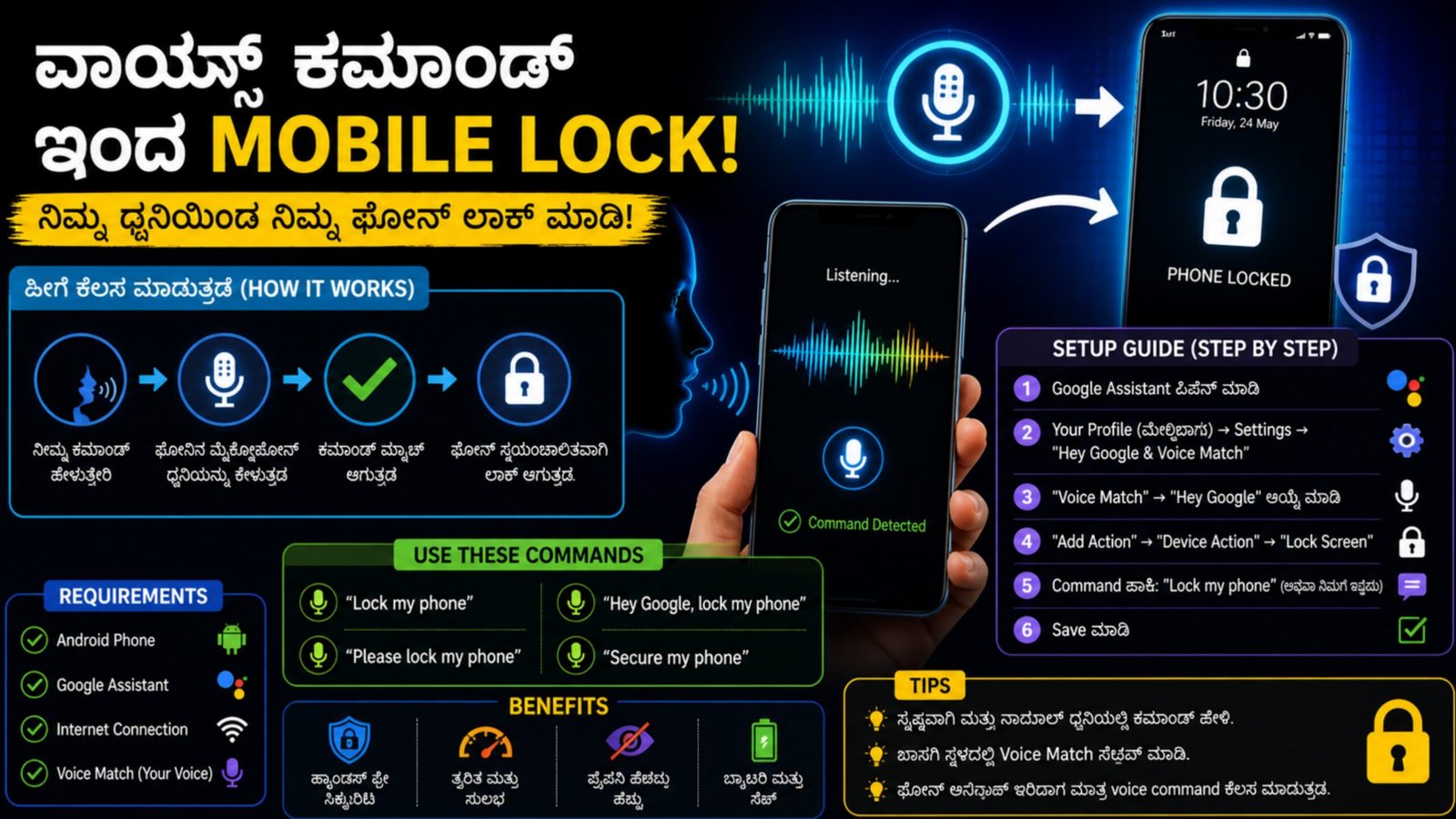
How to Lock Your Phone Using Voice Access 2026
Locking your smartphone with voice commands is one of the smartest and most convenient features available today. Whether your hands are busy or you simply prefer hands-free control, Voice Access makes it possible to secure your device instantly using your voice. This guide explains everything in simple steps.
What is Voice Access?
Voice Access is an Android accessibility feature developed by Google. It allows users to control their smartphones completely through voice commands. From opening apps to scrolling and locking the screen, everything can be done without touching the phone.
Requirements to Use Voice Lock Feature
Before using voice commands to lock your phone, make sure:
- Your device is running Android 8.0 or above
- Microphone permissions are enabled
- Internet connection is active (recommended for better accuracy)
Step 1: Install and Enable Voice Access
Follow these steps to set up the feature:
- Open Google Play Store
- Search for Voice Access
- Install and open the app
- Go to Settings → Accessibility → Voice Access
- Turn ON the toggle
Once enabled, a small icon or notification will appear on your screen.
Step 2: Grant Necessary Permissions
For smooth working, allow all required permissions:
- Microphone access
- Accessibility control
- Background running permission
This ensures your phone can listen and respond to commands correctly.
Step 3: Activate Voice Access
You can start Voice Access in different ways:
- Say: “Hey Google, turn on Voice Access”
- Tap the Voice Access notification
- Use accessibility shortcut
Once activated, your phone will begin listening for commands.
Step 4: Lock Your Phone Using Voice Command
Now comes the main part. To lock your phone, simply say:
- “Lock screen”
- “Turn off screen”
Your device will instantly lock, just like pressing the power button. This feature is very useful when your hands are wet, dirty, or busy.
Step 5: Use Google Assistant as Backup (Optional)
If Voice Access does not respond properly, you can use Google Assistant as an alternative:
- Activate Assistant by saying “Hey Google”
- Then say: “Lock my phone”
Make sure Assistant permissions are enabled in settings.
Tips for Better Voice Recognition
- Speak clearly and at a normal speed
- Avoid noisy environments
- Keep your microphone clean
- Use simple and direct commands
These tips improve accuracy and response time.
Final Words
Voice Access is a powerful feature that makes your smartphone smarter and more accessible. Locking your phone using voice commands is not only convenient but also enhances productivity. With just a simple command, you can secure your device anytime, anywhere—without even touching it.