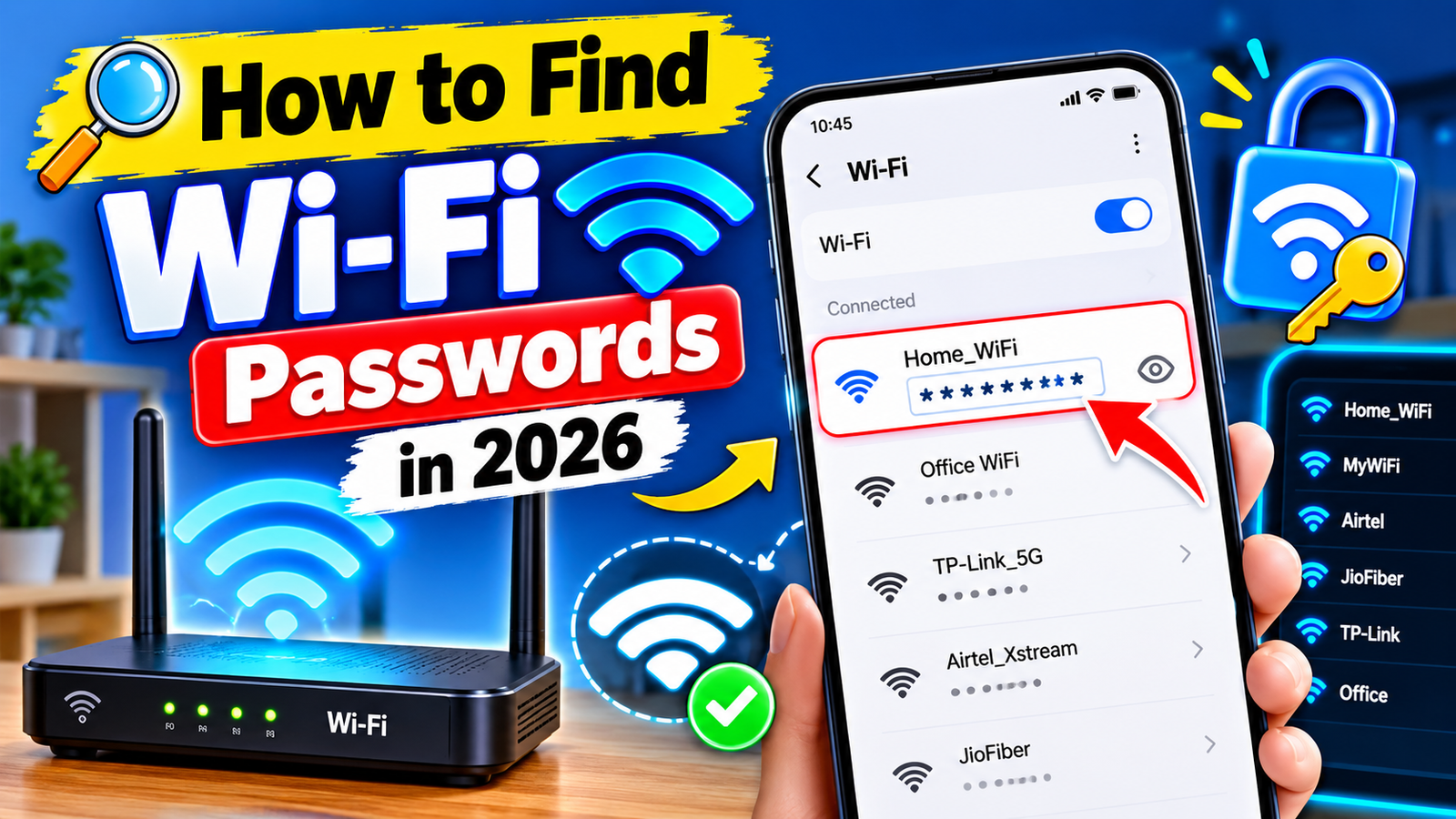
How to Find Wi-Fi Passwords in 2026
Wi-Fi has become an essential part of everyday life, whether you are using a smartphone, laptop, smart TV, or other connected device. Sometimes, you may forget the password of a Wi-Fi network that you already have permission to use. Fortunately, in 2026, most modern devices provide simple options to view or share saved Wi-Fi credentials.
This guide explains legitimate ways to find a Wi-Fi password without trying to access someone else’s private network.
1. Find Wi-Fi Password on Android
Many newer Android smartphones allow users to share saved Wi-Fi networks through a QR code.
Open Settings on your phone and select Wi-Fi or Network & Internet. Tap the network you are currently connected to and look for an option such as Share, QR Code, or Wi-Fi Share. After confirming your screen lock, the phone may display a QR code.
Another phone can scan this QR code to connect to the same network. Depending on the manufacturer and Android version, the actual password may or may not be displayed as plain text.
2. Find a Saved Wi-Fi Password on iPhone
On supported recent versions of iOS, open Settings > Wi-Fi and tap the information button next to the connected network. Tap the Password field and authenticate using Face ID, Touch ID, or your device passcode.
The saved password can then be viewed and copied. This feature is particularly useful when you have forgotten the password for your own home or office network.
3. Check the Wi-Fi Router
If you own or manage the router, check its label. Some routers have the original Wi-Fi network name and password printed on a sticker.
If the password was changed previously, you may need to sign in to the router’s official administration page or use the manufacturer’s official app. Look under wireless or Wi-Fi settings to check the current configuration.
4. Check Your Computer
Windows and macOS can also store Wi-Fi network information. Depending on the operating-system version, you can use the network settings or saved-password management options to view credentials for networks you are authorized to use.
If you use a work or school computer, administrator restrictions may prevent you from viewing saved passwords.
5. Avoid Unofficial Wi-Fi Password Apps
Be careful with websites and apps claiming that they can reveal nearby Wi-Fi passwords. Many such tools can be unsafe, collect personal information, or attempt to access networks without permission.
You should never try to bypass Wi-Fi security, guess another person’s password, or access a private network without authorization.
Conclusion
Finding a forgotten Wi-Fi password in 2026 is usually straightforward when you own the network or have permission to use it. Android QR sharing, iPhone password viewing, router settings, and computer network settings are the safest options. Always use official device features and respect the privacy and security of other Wi-Fi networks.