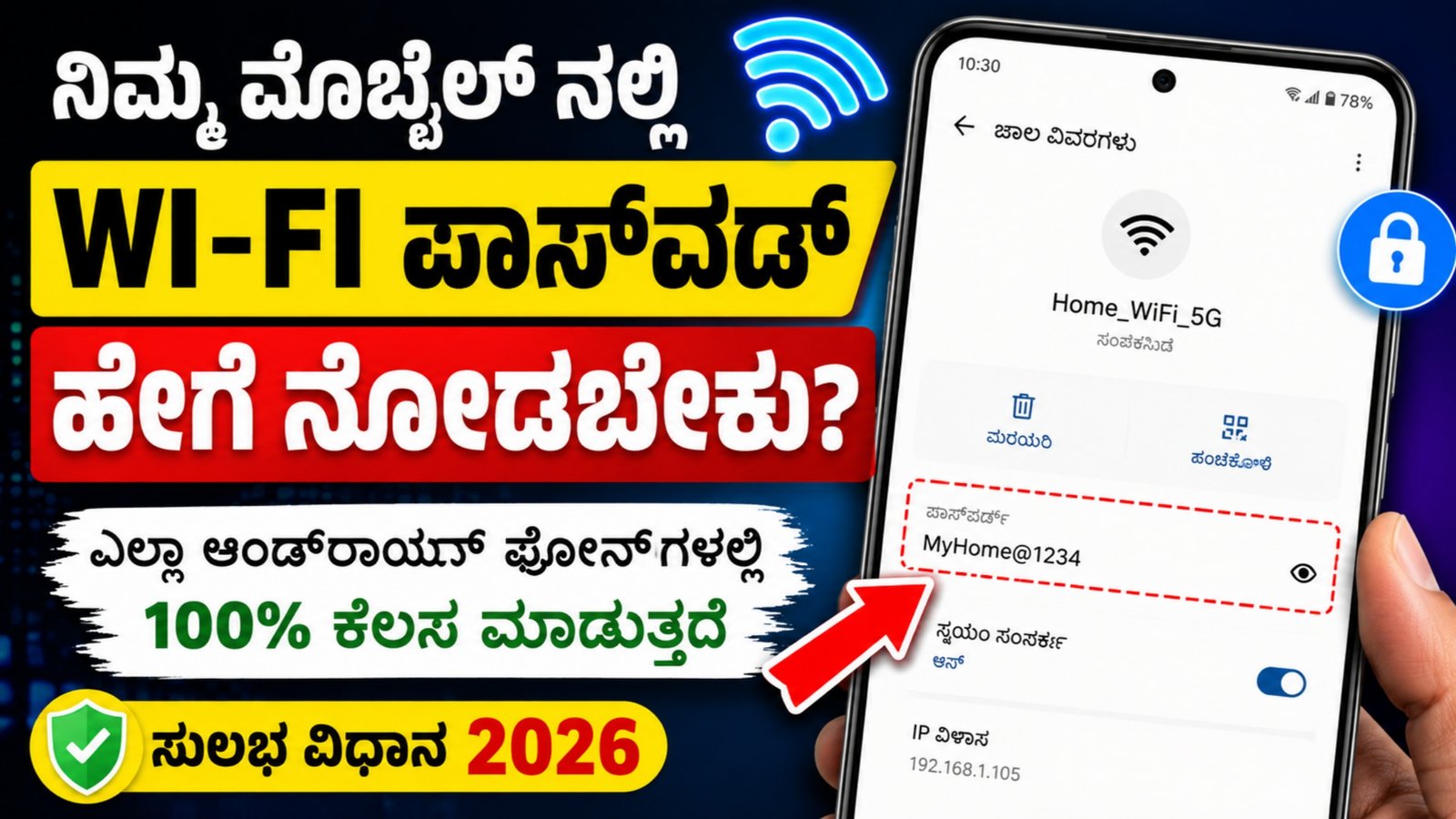
How To Find The Wi-Fi Password In Your Mobile In 2026
In 2026, finding your saved Wi-Fi password on a smartphone or tablet has become very simple. Whether you are using an Android phone, iPhone, tablet, or other smart device, you can easily check the Wi-Fi password saved on your device. This helps when connecting new devices like laptops, smart TVs, tablets, printers, or gaming consoles.
This guide explains all methods in simple language.
Table Of Contents
| No | Topics |
|---|---|
| 1 | What Is A Wi-Fi Password? |
| 2 | Why Users Need Wi-Fi Password |
| 3 | Find Wi-Fi Password On Android |
| 4 | Find Wi-Fi Password On iPhone |
| 5 | Find Wi-Fi Password On Tablets |
| 6 | Use QR Code To Share Wi-Fi |
| 7 | Find Password From Router |
| 8 | Safety Tips |
| 9 | Common Problems & Solutions |
| 10 | Conclusion |
1. What Is A Wi-Fi Password?
A Wi-Fi password is a security key used to connect devices to a wireless internet network. It protects your internet connection from unknown users and keeps your data secure.
2. Why Users Need Wi-Fi Password
Many people forget their Wi-Fi password after connecting once. You may need it for:
- Connecting a new mobile
- Using tablets or laptops
- Sharing internet with family
- Connecting smart TVs
- Resetting devices
- Setting up gaming consoles
3. Find Wi-Fi Password On Android Mobile
Most Android phones in 2026 allow users to view saved Wi-Fi passwords directly from settings.
Step 1: Open Settings
Go to the Settings app.
Step 2: Open Network Settings
Tap:
- Wi-Fi
- Connections
- Network & Internet
Step 3: Select Connected Wi-Fi
Choose the connected Wi-Fi network.
Step 4: Tap Share Option
Click the Share or QR Code option.
Your phone may ask for:
- Fingerprint
- Face Unlock
- PIN
- Password
Step 5: View Password
After verification:
- The password will appear on screen
- A QR code may also appear for easy sharing
4. Find Wi-Fi Password On iPhone
Apple devices also provide password viewing options.
Step 1: Open Settings
Go to Settings.
Step 2: Tap Wi-Fi
Select the connected Wi-Fi network.
Step 3: Open Password Section
Tap the password field.
Use:
- Face ID
- Touch ID
- Passcode
The Wi-Fi password will become visible.
5. Find Wi-Fi Password On Tablets
Tablets work almost the same as smartphones.
Android Tablets
- Open Settings
- Tap Wi-Fi
- Select connected network
- Tap Share
- View password
iPad
- Open Settings
- Tap Wi-Fi
- Select network
- Tap Password
- Verify using Face ID or Passcode
6. Use QR Code To Share Wi-Fi
QR code sharing is one of the best features in 2026.
Benefits Of QR Sharing
| Feature | Benefit |
|---|---|
| Fast Connection | Connect instantly |
| No Typing | Avoid typing mistakes |
| Secure Sharing | Safe connection method |
| Easy Access | Useful for guests |
Another device can scan the QR code and connect automatically.
7. Find Password From Router
If the password is not available on your mobile:
- Check the back side of the router
- Look for SSID and Password sticker
- Login to router settings if needed
Some internet providers print default passwords on the router.
8. Important Safety Tips
Always keep your Wi-Fi secure.
Follow These Tips
- Use strong passwords
- Avoid sharing with strangers
- Change passwords regularly
- Never install fake Wi-Fi hacking apps
- Update router software frequently
9. Common Problems & Solutions
| Problem | Solution |
|---|---|
| Password Not Showing | Restart mobile |
| QR Code Not Working | Increase brightness |
| Forgot Router Password | Reset router |
| Unable To Connect | Re-enter password |
10. Conclusion
Finding a Wi-Fi password in your mobile, tablet, or iPhone in 2026 is very easy. Modern devices provide built-in options to view and share saved Wi-Fi passwords securely. By using settings, QR codes, or router details, users can quickly connect other devices without technical knowledge. Always protect your Wi-Fi network by using strong passwords and sharing them only with trusted users.