How to Edit a Trending Video Using Alight Motion
Introduction
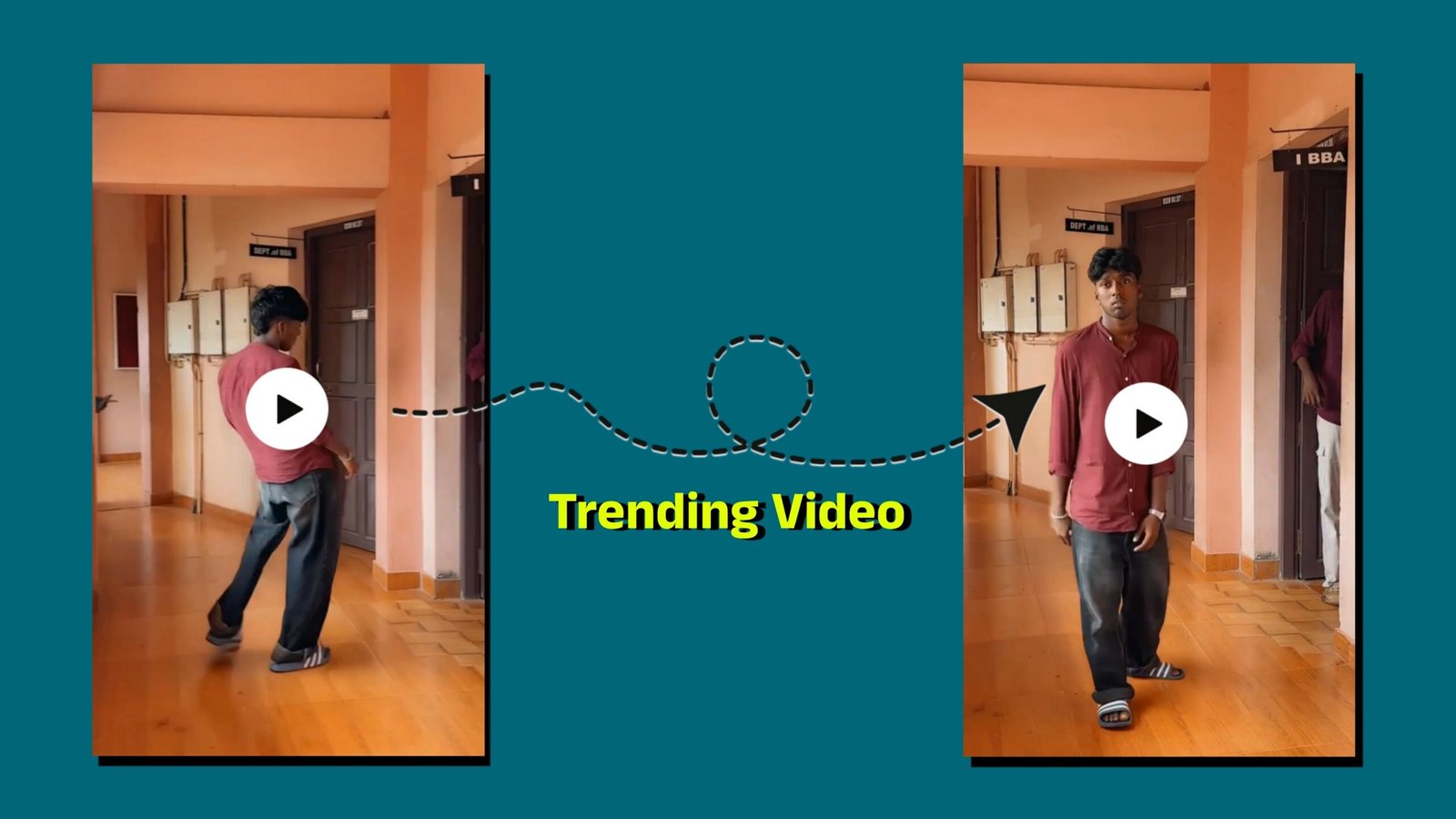
Alight Motion is one of the most popular mobile video editing applications used by content creators to make trending reels, shorts, and social media videos. It offers professional features such as keyframe animation, visual effects, transitions, color correction, and motion graphics. If you want to create eye-catching trending videos directly from your smartphone, Alight Motion is an excellent choice.
What is Alight Motion?
Alight Motion is a mobile video editing and motion graphics application available for Android and iOS devices. It allows users to create professional-quality videos with animations, effects, and smooth transitions. Many Instagram Reel, YouTube Shorts, and TikTok creators use Alight Motion to produce viral content.
Features of Alight Motion
- Keyframe animation support
- Multiple video and audio layers
- Professional visual effects
- Smooth transitions
- Color adjustment tools
- Text animation options
- Speed control features
- Export videos in high quality
Steps to Edit a Trending Video
Step 1: Install Alight Motion
Download and install Alight Motion from your device’s app store. Open the app and create an account if required.
Step 2: Create a New Project
- Tap the “+” button.
- Select the desired video resolution.
- Choose frame rate (30 FPS or 60 FPS).
- Click “Create Project.”
Step 3: Import Video Clips
- Tap “Media.”
- Select the video clips you want to edit.
- Add them to the timeline.
Step 4: Trim and Arrange Clips
Cut unnecessary parts of the video and arrange clips in the correct sequence. Keep the video short and engaging to match current social media trends.
Step 5: Add Trending Transitions
Use smooth transitions between clips such as:
- Zoom Transition
- Shake Effect
- Flash Transition
- Blur Transition
These transitions make your video look more professional and attractive.
Step 6: Apply Effects
Add popular effects to improve visual quality:
- Motion Blur
- Glow Effect
- RGB Effect
- Camera Shake
- Velocity Effect
Avoid using too many effects, as they can make the video look cluttered.
Step 7: Add Music
Import trending background music or audio. Sync your video clips with the beats of the music to create a professional-looking edit.
Step 8: Add Text and Captions
Use animated text to highlight important points. Choose stylish fonts and apply smooth text animations to increase viewer engagement.
Step 9: Color Correction
Adjust:
- Brightness
- Contrast
- Saturation
- Highlights
- Shadows
Proper color correction makes your video more attractive and professional.
Step 10: Export the Video
Once editing is complete:
- Tap the Export button.
- Select 1080p resolution.
- Choose 30 FPS or 60 FPS.
- Export and save the video.
Tips for Creating Viral Trending Videos
| Tip | Benefit |
|---|---|
| Use trending music | Increases reach |
| Keep videos short | Improves watch time |
| Add smooth transitions | Creates professional look |
| Use high-quality clips | Enhances visual appeal |
| Sync edits with music beats | Boosts engagement |
| Add captions | Improves viewer retention |
Common Mistakes to Avoid
- Using too many effects
- Poor-quality video clips
- Incorrect music synchronization
- Overloaded text animations
- Exporting at low resolution
Conclusion
Alight Motion is a powerful mobile editing application that helps beginners and professionals create trending videos with ease. By using smooth transitions, popular effects, engaging music, and proper color correction, you can produce high-quality reels and shorts that attract more views and followers. With regular practice, you can master Alight Motion and create professional trending videos directly from your smartphone.