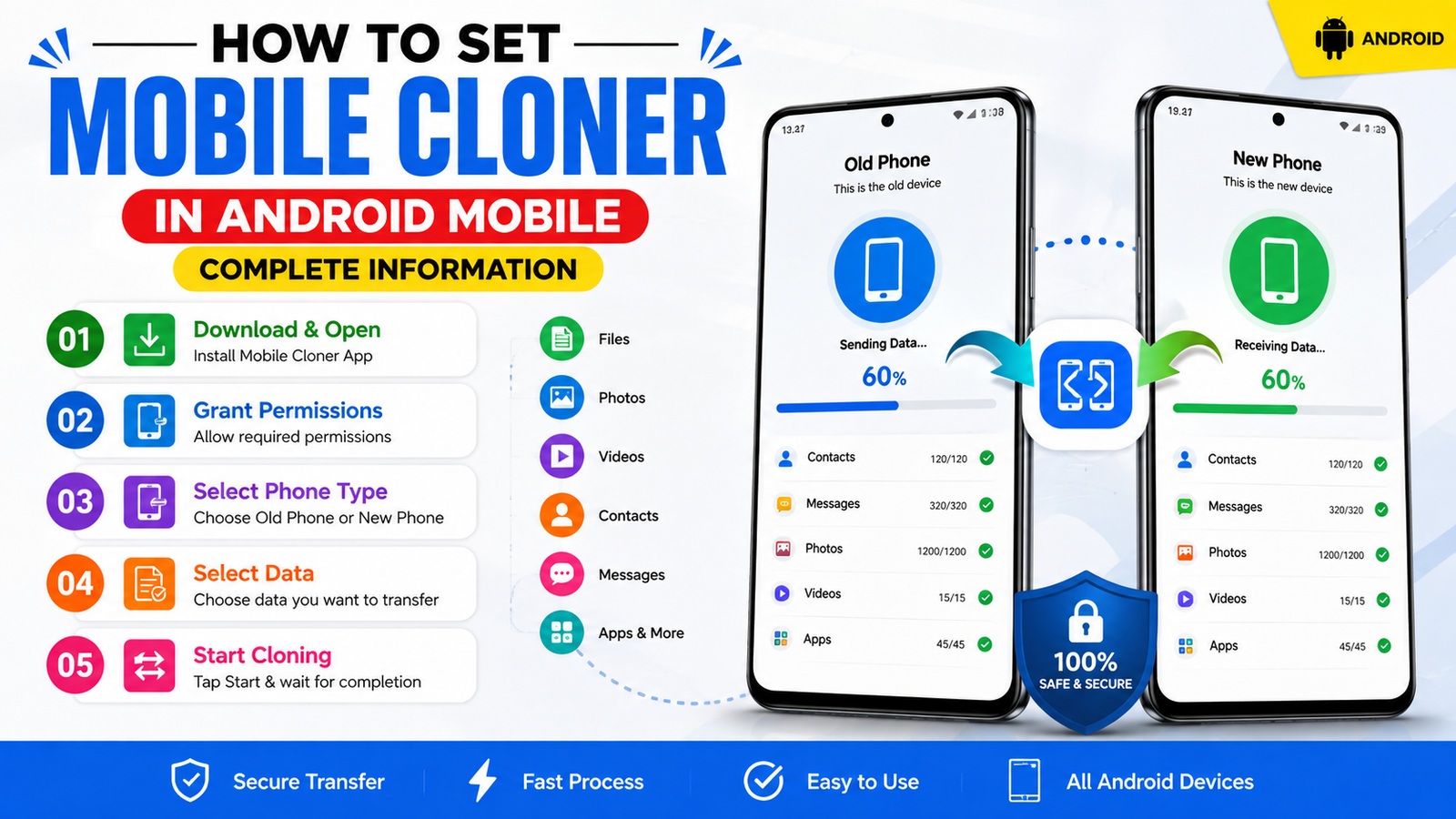
How to Set Mobile Cloner in Android Mobile Information
Mobile Cloner is a useful feature available on many Android smartphones that allows users to create a separate copy of a supported application. This can be helpful when you want to use two accounts of the same app on one mobile phone. Depending on the smartphone brand, this feature may be called App Clone, Dual Apps, App Twin, Parallel Apps, or Dual Messenger.
What Is Mobile Cloner?
Mobile Cloner allows you to duplicate selected applications without installing a second phone. For example, you may be able to create a second copy of WhatsApp, Facebook, Messenger, or another supported application. Each cloned app can normally have its own login and account.
However, not every Android phone supports app cloning, and the available applications can differ between manufacturers and Android versions.
How to Set Mobile Cloner on Android
First, open the Settings application on your Android smartphone. Scroll through the settings menu and look for an option such as App Clone, Dual Apps, App Twin, Clone Apps, or Parallel Apps.
After opening the relevant option, you will see a list of applications that can be cloned. Select the application you want to duplicate. Turn on the switch beside that application.
Your phone may take a few seconds to create the cloned version. Once completed, a second icon will usually appear on your home screen or in the app drawer. The cloned application may have a small symbol or badge to distinguish it from the original app.
Open the cloned application and sign in using your second account. You can then use the original and cloned applications separately.
If You Cannot Find Mobile Cloner
If your Android phone does not show an app-cloning option, first use the Settings search bar and type Clone Apps, Dual Apps, or App Clone. The feature may be located under Apps, Advanced Features, Special Features, or similar settings.
Some phones do not provide built-in app cloning. In that situation, users should avoid installing unknown cloning applications because they may request unnecessary permissions or create privacy and security risks.
Important Safety Tips
Only clone applications that you actually need. Check the permissions requested by any cloning feature or third-party application. Keep Android and your applications updated, and avoid downloading APK files from unknown websites.
Also remember that cloned applications may consume additional storage, RAM, battery, and mobile data because two app instances are running on the same device.
Conclusion
Mobile Cloner is a convenient Android feature for managing multiple accounts on one smartphone. The exact steps vary according to the mobile brand and Android version, but the general process is simple: open Settings, find the app-cloning feature, select a supported application, enable cloning, and configure the second account. If the option is unavailable, your phone may not support built-in app cloning