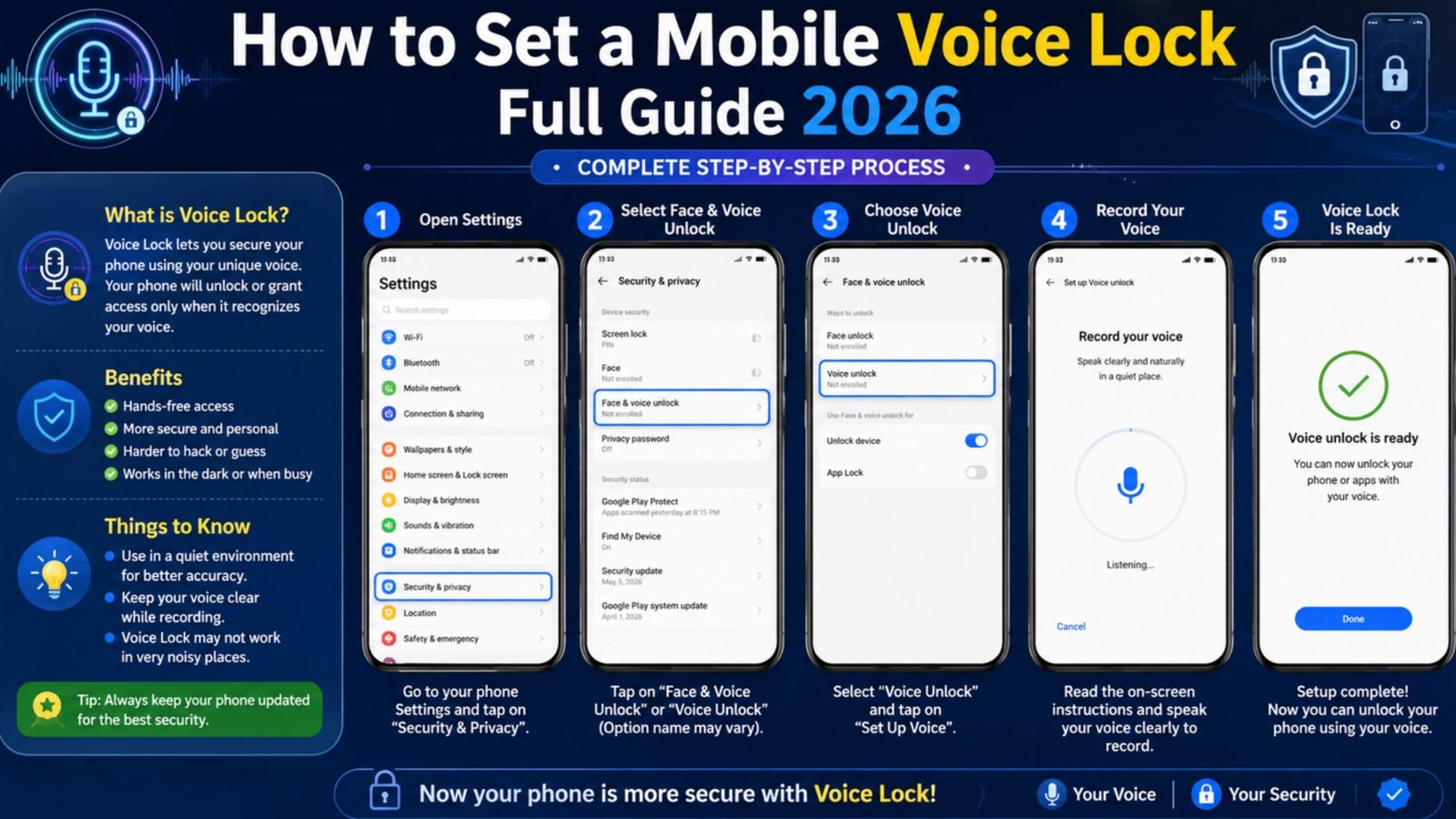
How to Set a Mobile Voice Lock Full details in 2026
Introduction
Mobile phones contain personal information such as photos, videos, contacts, banking apps, and social media accounts. To protect this data, many smartphone users now prefer using a Voice Lock feature. A voice lock allows you to unlock your phone using a specific voice command, adding an extra layer of security and convenience.
In this guide, you will learn how to set up a mobile voice lock easily using your smartphone.
What is Mobile Voice Lock?
A mobile voice lock is a security feature that unlocks your phone when it recognizes your registered voice command. Instead of entering a PIN, pattern, or password, you can simply speak a predefined phrase to access your device.
Benefits of Voice Lock
- Easy and quick phone access
- Additional security layer
- Hands-free unlocking
- User-friendly for all age groups
- Works alongside traditional screen locks
Requirements for Voice Lock Setup
Before setting up a voice lock, make sure:
| Requirement | Details |
|---|---|
| Smartphone | Android or iPhone |
| Internet Connection | Required for some apps |
| Microphone | Must be working properly |
| Voice Lock App | Optional for Android devices |
| Screen Lock | PIN or Password recommended |
How to Set Voice Lock on Android
Step 1: Open Google Assistant
Open the Google app and tap your profile picture.
Step 2: Access Settings
Go to Settings → Google Assistant → Voice Match.
Step 3: Enable Voice Match
Turn on the “Hey Google” option.
Step 4: Train Your Voice
Follow the instructions and repeat the phrases shown on the screen.
Step 5: Save Settings
Once your voice is recognized, save the settings and complete the setup.
How to Use Third-Party Voice Lock Apps
Some Android phones do not provide direct voice lock functionality. In such cases:
- Open the Google Play Store.
- Search for “Voice Lock Screen.”
- Install a trusted app with good ratings.
- Open the app and grant permissions.
- Record your voice password.
- Save the settings and activate the lock.
Tips for Better Voice Recognition
- Record your voice in a quiet environment.
- Speak clearly and naturally.
- Avoid very short passwords.
- Update your voice profile occasionally.
- Keep a backup PIN or password enabled.
Advantages and Disadvantages
Advantages
- Fast unlocking experience
- Modern security feature
- Convenient hands-free access
Disadvantages
- May not work well in noisy places
- Voice changes due to illness can affect recognition
- Less secure than strong biometric authentication in some situations
Conclusion
Setting up a mobile voice lock is a simple way to enhance your smartphone security while making device access more convenient. Most Android users can use Google Assistant Voice Match or trusted voice lock applications to enable this feature. However, it is always recommended to keep a PIN, password, or fingerprint lock as a backup security option. By following the steps above, you can easily set up and use a voice lock on your mobile phone in 2026.